Early testing · Not the final release
Your iPhone health history.
Your own Mac.
HealthFold reads the Apple Health categories you choose, syncs them over your local network to your Mac, and lets you browse measurements, trends and workouts. You can optionally connect an AI client through read-only MCP.
What you need
iPhone with iOS 17+, Mac with macOS 14+ (Intel or Apple Silicon), and the same Wi-Fi or local network. No Apple Watch is required. The beta is free, supports one member per Mac, and offers English and Simplified Chinese. Windows is not supported.
Get connected
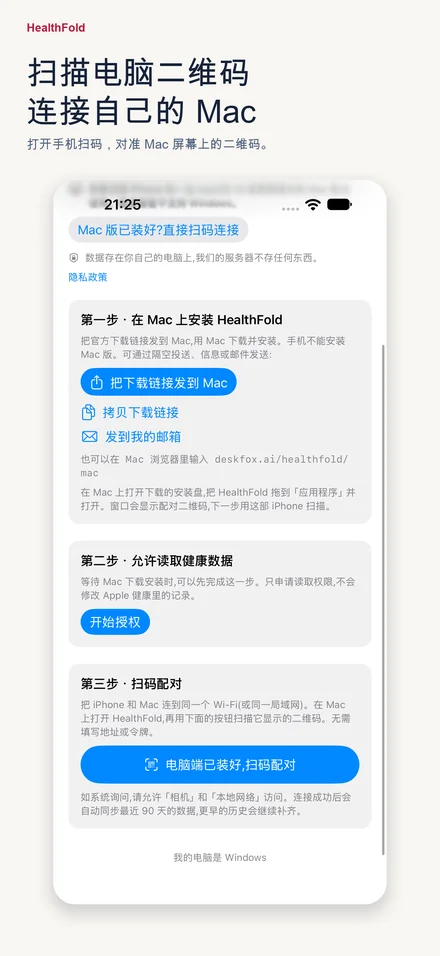
- On the Mac, download the DMG, drag HealthFold into Applications and open it. Allow local-network and firewall access when asked.
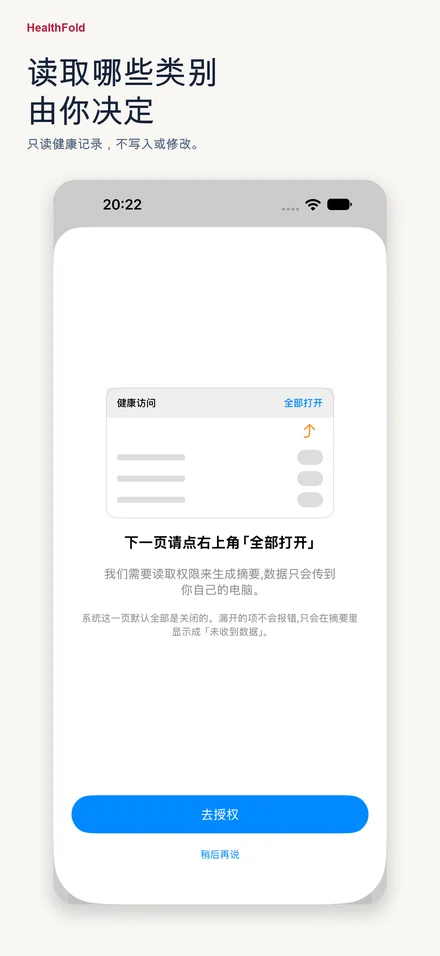
- On the iPhone, install TestFlight and accept the invitation. Install HealthFold, choose the health categories to allow, and scan the current QR code shown on the Mac.
- The last 90 days sync first. Keep the iPhone app open for the first sync; older available history can continue filling in afterwards.
- On the Mac, browse Health Data and Workouts. AI access is optional: copy the instructions from Connect AI and follow the MCP setup guide.
A look at the iPhone app
Actual beta screens: getting started, health authorization guidance and the scan-to-pair step. Scan the QR code on your Mac to connect. No personal health data is shown. Tap an image to enlarge.
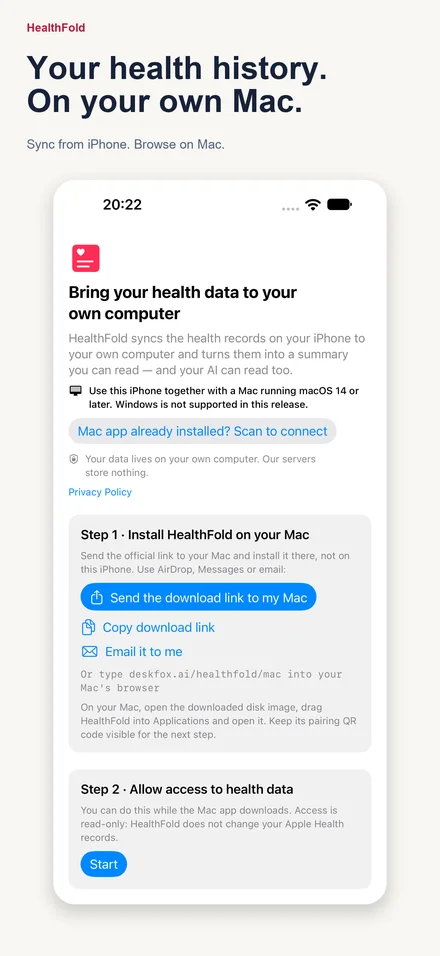
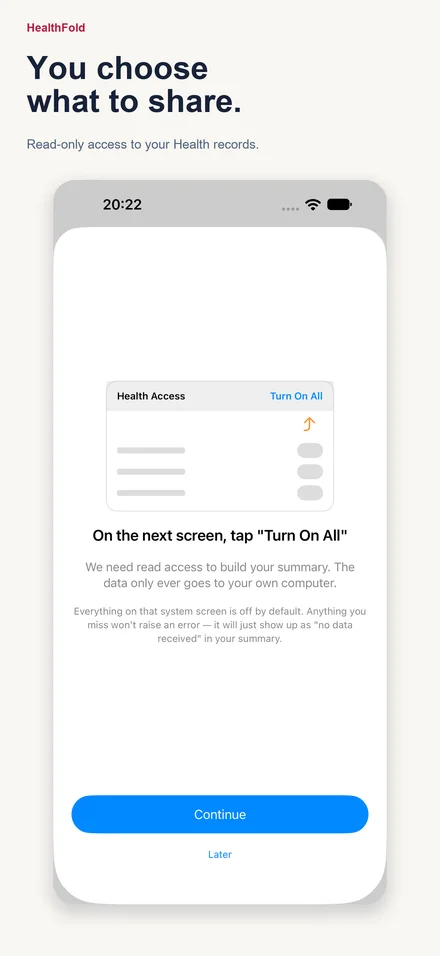
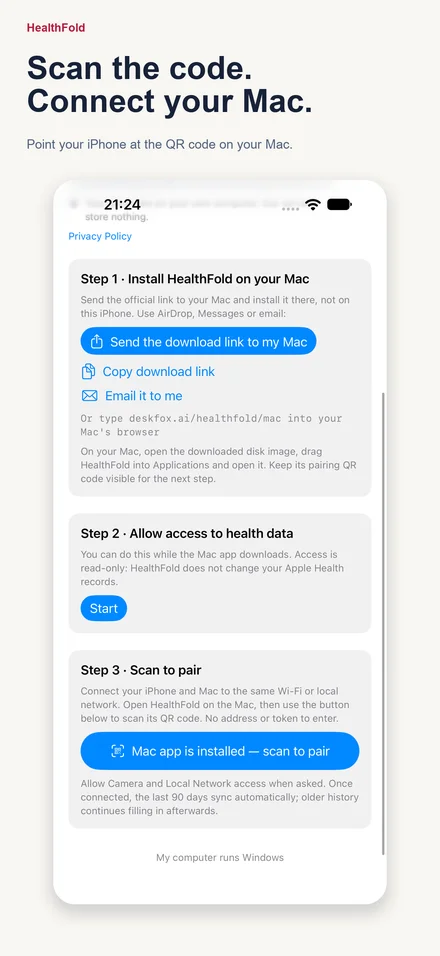
Having trouble scanning?
Check Camera access and make sure the current Mac QR code is visible. Only if scanning fails or the camera is unavailable, use the scanner's manual-code fallback and enter the six digits shown under the Mac QR code. Both devices must still be on the same local network.
What to test
- Can you install and reach the first visible data without help? Tell us approximately how long it took.
- Do the available measurements and units look right compared with your Health app? Missing categories may simply lack data or permission.
- Does sync resume after the Mac sleeps or the network disconnects? Does closing the Mac window leave receiving available?
- If you use an MCP client, can it call list_persons and get_overview and show the coverage notice?
Send useful, private feedback
Use TestFlight's Send Beta Feedback or email lengjie@getbot.me. Include app build, iPhone/Mac model, OS version, language, what you did, and what happened. Crop or redact health values and names. Do not send your health database, export zip, pairing QR code, token or device key.
HealthFold never writes or changes your Apple Health records. The Mac copy is local; deletion in HealthFold does not delete the original Health records. If you connect a cloud AI client, data returned through MCP may be sent to that provider. Read the privacy policy before testing. HealthFold does not provide diagnoses.
HealthFold 首批测试邀请
把 iPhone「健康」里你选择授权的数据同步到自己的 Mac,在大屏上查看指标、趋势和训练;愿意的话,也可以让你选择的 AI 工具通过 MCP 只读查询。
Mac 测试版现可下载;iPhone 1.0 (3) 已获外部测试批准。 请打开 TestFlight 邀请确认剩余名额,首批限额 100 人。这不是正式上架。免费、单成员,支持中英两种界面;需要 iOS 17+ 与 macOS 14+,不支持 Windows,没有 Apple Watch 也能用。
- 先在 Mac 下载 DMG,拖入「应用程序」后打开,允许本地网络和防火墙连接。
- 手机按邀请链接安装 TestFlight 和 HealthFold,选择健康授权,扫描电脑当前二维码;两端连同一 Wi-Fi 或局域网。
- 先同步最近 90 天,首次同步时建议保持手机 App 打开;更早的可读取历史继续补齐。
- 重点反馈安装是否顺畅、多久看到第一批数据、指标/单位是否符合预期,以及睡眠或断网后能否恢复。
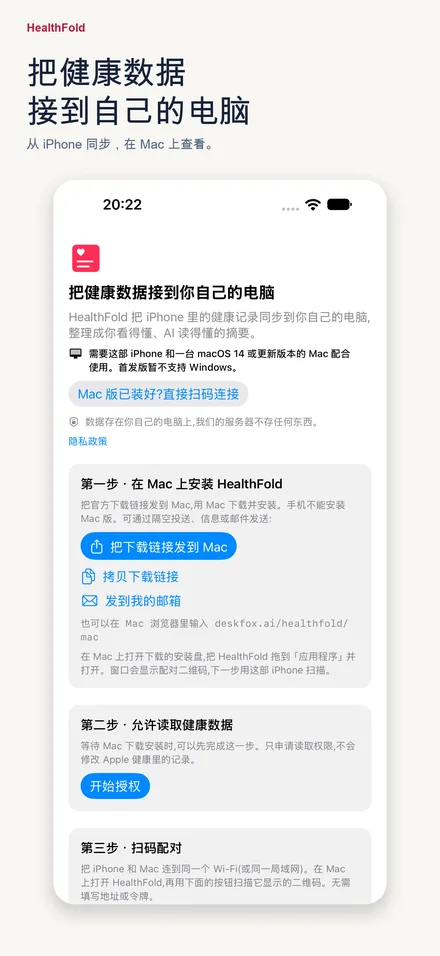
扫码没有成功?
先检查相机权限,确保电脑显示的是当前配对二维码。只有扫码失败或相机不可用时,再使用扫码页里的手输备用入口,填写电脑二维码下方的六位配对码。两端仍需连接同一局域网。
请通过 TestFlight 或邮件反馈机型、系统、版本号、操作步骤和现象。截图请遮住姓名和健康数值,不要发送健康数据库、导出包、配对二维码或密钥。软件不写入或修改 Apple 健康原始记录。AI 接入完全可选;使用云端 AI 时,请先确认其隐私条款。