Record at your pace
How to Read a Teleprompter Naturally on iPhone
To read a teleprompter more naturally, write for speech, make the words easy to see, and rehearse at your own pace. Place the phone so reading requires less looking away, then inspect a short recording. FoxTake does not digitally correct eye contact.
Fix the sentence before fixing the speed
A sentence that looks elegant in a report may be difficult to say. Read the script without scrolling first. If you cannot deliver it comfortably, shorten clauses, explain jargon and divide lists into smaller thoughts.
For example, Implementation should commence subsequent to stakeholder alignment
might become Agree on the plan with the people involved. Then start the work.
This is a writing example; keep any technical precision your subject requires.
Find a comfortable phone position
Start with the phone stable and near eye level, then adjust to your posture and framing. Choose a distance where your face fits the shot and you can read without leaning forward. Check the camera preview rather than relying on a fixed distance recommended for someone else's setup.
Make a short recording and watch for repeated side-to-side scanning or looking far below the lens. Move the setup or change the text size if needed. Reading close to a camera can help, but it does not guarantee that your gaze always appears centered.
Adjust text size and pacing together
Pinch the prompter to change text size. Larger text can be easier to read, but fewer words fit on screen. Rehearse a representative paragraph before deciding whether a larger font is better.
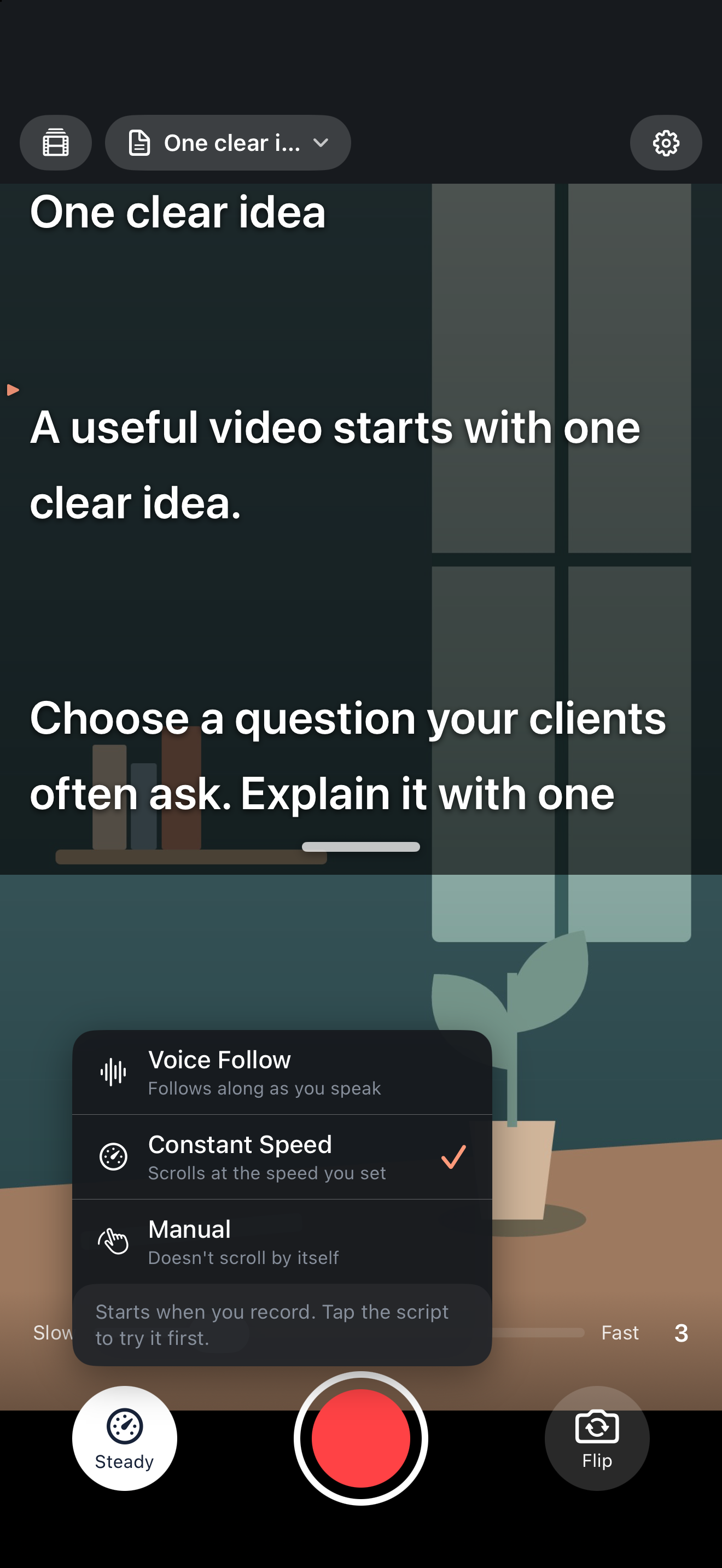
With constant speed, begin slowly enough to finish a thought without racing. If you are repeatedly waiting for words, increase the speed gradually. If they run ahead, lower it or pause. No particular setting fits every person, phone and script.
Keep the pauses that support meaning
Pause between ideas, especially before an example or after a key point. Do not rush merely because the text is moving. Tap the script to pause or continue, or use manual control for short sections.
Voice Follow can wait through pauses and track repeated sentences when supported speech recognition works well. If it loses your place, pause and recover or switch modes. It is a reading aid, not a requirement to follow the script word for word.
Review a short take before a long one
- Record a paragraph with a natural pause and one important term.
- Listen without looking at the script. Does it sound like an explanation you would give someone?
- Watch the framing and eye movement. Adjust only one part of the setup at a time.
- If you misspeak, repeat the complete thought and review the retake cut later.
The goal is clear expression, not a perfectly memorized performance. A useful qualification or spontaneous clarification can belong in the finished video even if it was not in the original script.
Version and sources
Product instructions cover international FoxTake 2.0. Feature scope is checked against the published App Store description and release implementation. Writing examples are illustrative, not customer results.