Record at your pace
Voice-Activated Teleprompter on iPhone: Voice Follow, Fixed Speed or Manual
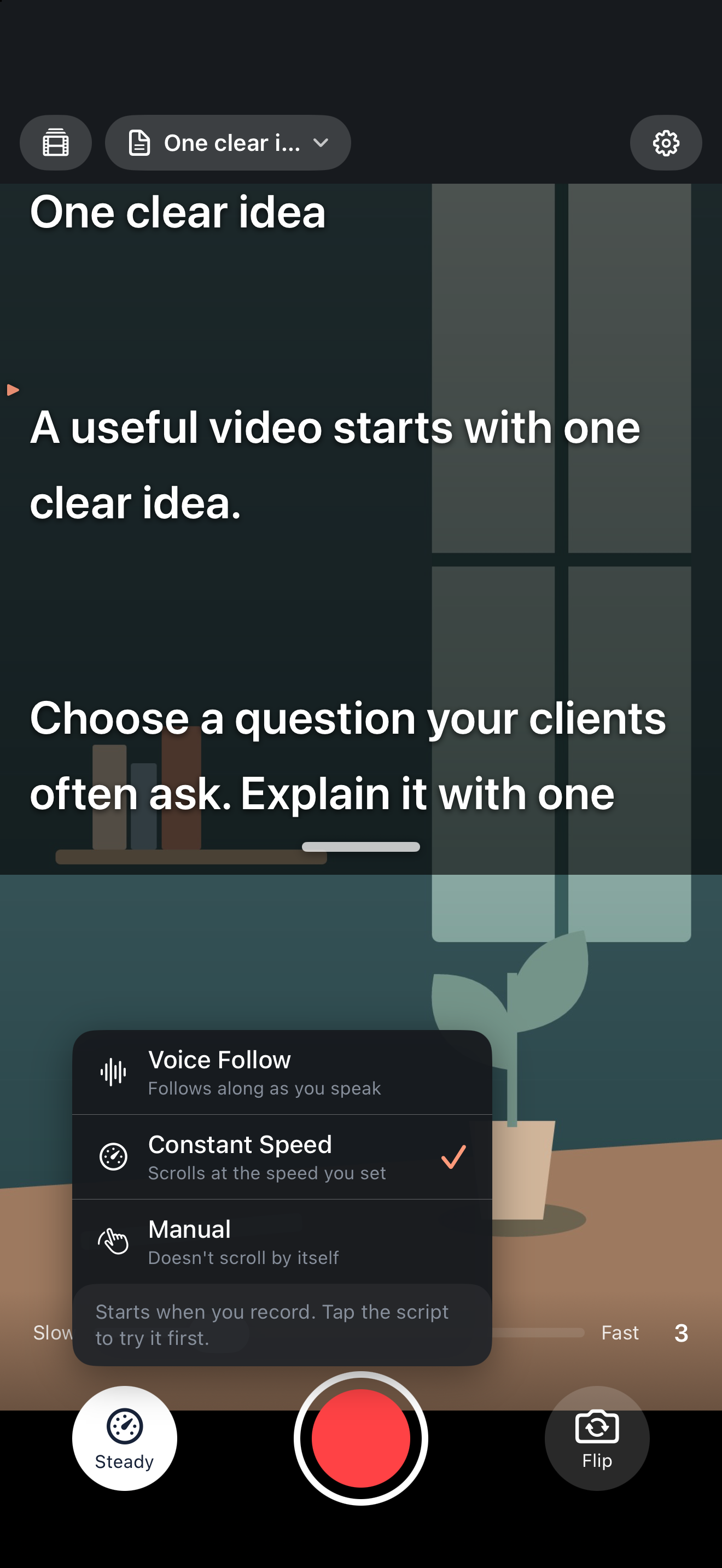
FoxTake works as a voice-activated teleprompter: Voice Follow (uses credits) scrolls as you speak and waits when you pause. Voice Follow responds to your speech, constant-speed scrolling advances at a chosen pace, and manual scrolling lets you move the text yourself. Choose the mode that helps you explain naturally rather than chase the words.
Which mode should you choose?
| Mode | Useful when | Trade-off |
|---|---|---|
| Voice Follow | You want pauses and repeated sentences to guide the prompter. | Uses credits and requires speech support; it can lose your position. |
| Constant speed | You prefer a rehearsed, steady delivery. | Text does not understand an unscripted pause. |
| Manual | You work in short sections or want complete control. | You need to move the text yourself. |
Make the script readable first
Read a few sentences aloud before changing speed. Short sentences and paragraph breaks are easier to follow than a dense report. Pinch to resize the prompter. Larger text means fewer words on screen, so rehearse in the framing you plan to use.
Keep the phone stable and near eye level as a starting point, then adjust to your setup. A practice recording reveals whether you are scanning too far across the screen. There is no universal font size or speed for every person and device.
Use Voice Follow
Choose Voice Follow in the scrolling control and use the supported spoken language. It follows recognized speech, waits through pauses, and can follow a repeated sentence back. The confirmed read prefix is visually distinguished from unread words.
If Voice Follow loses your place
If the script drifts ahead or stops following, do not speed up to catch it. Pause, find your place and continue from the start of the sentence.
- Tap the script to pause or continue scrolling, and double-tap to go back a sentence.
- Check that the selected spoken language matches what you are saying, that microphone access is allowed and that background noise is low.
- Take over manually or switch to constant speed for a passage that keeps drifting, such as a list of names or numbers.
Following every accent, specialist term or improvised sentence accurately is not guaranteed. A sentence you repeat after a stumble is part of the recording either way; the retake cut is reviewed later when you make the video.
Use constant speed or manual control
Set the speed slider to match your comfortable delivery. Rehearse a representative paragraph with a natural pause. If text runs ahead, lower the speed; if you are waiting, raise it gradually.
Tap the script to pause or continue. Double-tap to return a sentence. Manual scrolling suits a section-by-section explanation: read, explain, then move on. Practice gestures before an important take.
Separate prompting from finishing
Scrolling controls the reading aid. It does not digitally correct your eyes, validate your explanation or automatically make speech sound natural. A prompter waiting through a pause does not mean the pause has been removed from the recording.
If you misspeak, repeat the full thought at a natural pace. Retake cutting is a separate finishing step, and its suggestions should be reviewed. Do not assume the app always selects the version you intended.
Version and sources
Written for international FoxTake 2.0, based on the published App Store description and release implementation. Other interface languages use localized control labels.