Start here
How to Record a Talking-Head Video on iPhone with FoxTake
FoxTake is an iPhone video workspace for independent professionals. Prepare your own words, read near the camera, and record a portrait video. Use credits to turn the recording into a captioned video with editable retake cuts.
Prepare one clear point
Choose something you already know: answer a client question, explain a concept, or describe a method you use. A short, single-topic recording is a practical first exercise. You do not need a polished marketing script.
- Create or open a script. Type, paste, import a .txt or .md file, or dictate into the editor.
- Read it aloud once. Replace dense written sentences with words you would actually say.
- If you use AI Polish, compare its full-draft proposal with your original before replacing it. Check names, numbers and qualifications.
Set up the phone and record
Allow camera and microphone access. Choose the front or back camera, support the phone steadily, and check the preview and lighting. FoxTake records portrait video.
- Pinch to adjust prompter text size and position the phone so the words are near your natural line of sight.
- Choose constant-speed scrolling, manual scrolling, or Voice Follow. Rehearse briefly before recording.
- Record a short section and play it back. Check sound and framing.
- For the full take, pause naturally. If you misspeak, repeat the complete thought so you have a coherent version to review.
Reading near the lens can reduce looking away, but FoxTake does not digitally correct your eyes or guarantee eye contact. The prompter text is an interface layer, not part of the original camera recording.
Need to show an object or the space around you? You can switch between the front and back cameras during the same recording, then continue with captions and finishing.
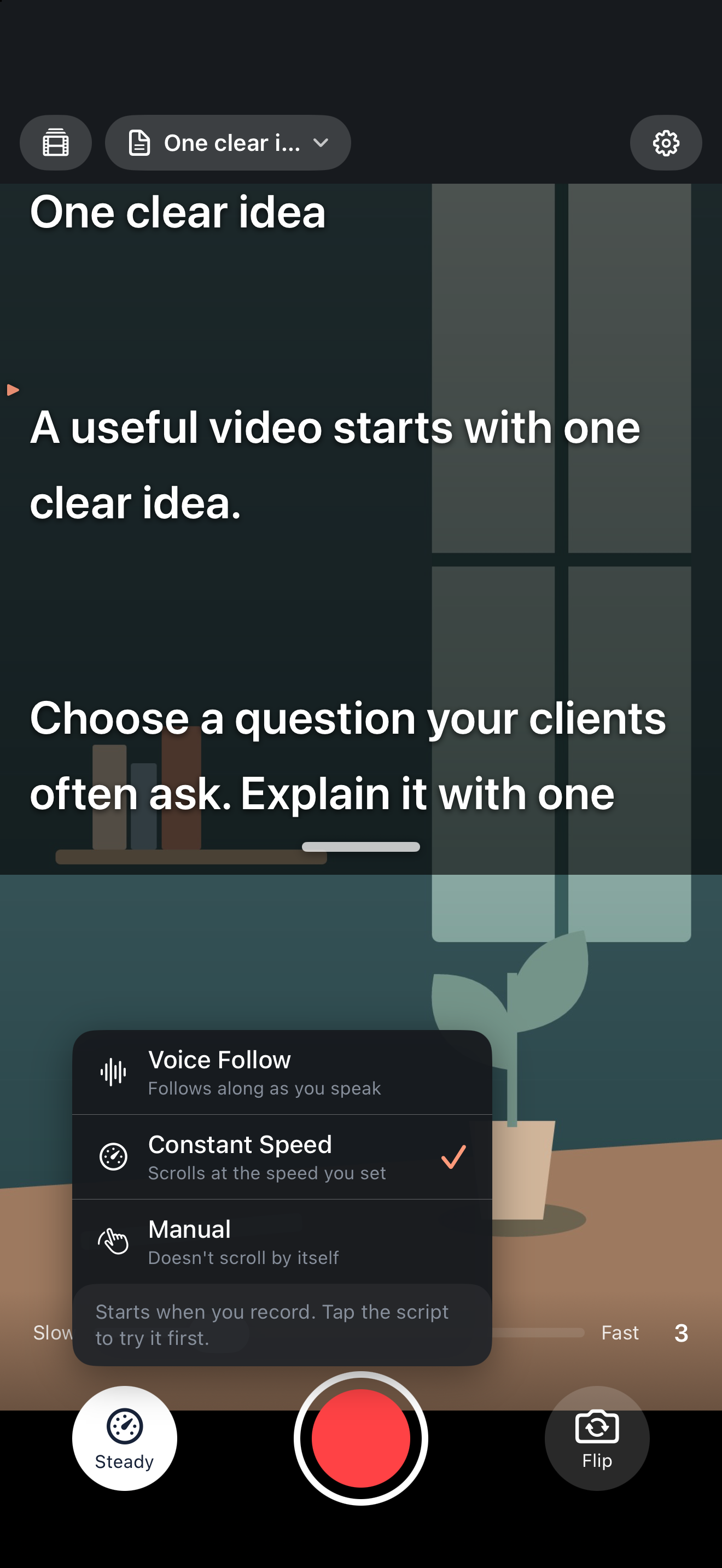
Make and check the video
Open the recording's one-tap video workflow, which uses credits. Check the speech language and caption output. To inspect proposed edits before rendering, enable Review Before Making (also labeled Check Before Making in some builds). This option is off by default.
Review cuts and restore anything that should remain. Check captions against the audio, especially corrections, negations, names and figures. Actual speech is the source of truth; the script is only a recognition aid. You can also review and remake after the first render.
Save, share and verify
Save to Photos or use the system sharing options. If you chose SRT or both outputs, share the separate caption file too. Play the exported video before publishing: check sound, cuts, wording and placement. FoxTake does not automatically publish to social platforms or guarantee that captions avoid every platform's controls.
You can stop after recording without using credit-based finishing. A one-to-three-minute explanation is a useful starting exercise, not a stated recording limit.
Version and sources
Written for international FoxTake 2.0, based on the published App Store description and release implementation. Other interface languages use localized control labels.