Finish and deliver
Burned-In Captions vs SRT: Export Options in FoxTake
Choose captions drawn into the video, a clean video with a separate .srt file, or both. Burned-in captions remain visible in the picture. SRT stores timed text for a compatible player or publishing service to display separately.
Choose an output for your destination
| Output | Files | Useful when |
|---|---|---|
| Video captions | Video with words rendered into its frames. | Words must remain visible wherever it plays. |
| SRT | Clean video plus a separate timed-text file. | The destination accepts separate captions. |
| Both | Captioned video plus an SRT file. | You need both deliverables. |
A platform displaying a separate caption track over a burned-in video can show duplicate captions. Choose how you will use the files before publishing.
Configure caption output
- Open the recording's making options and enable Add Captions.
- Check the speech language and review the source words.
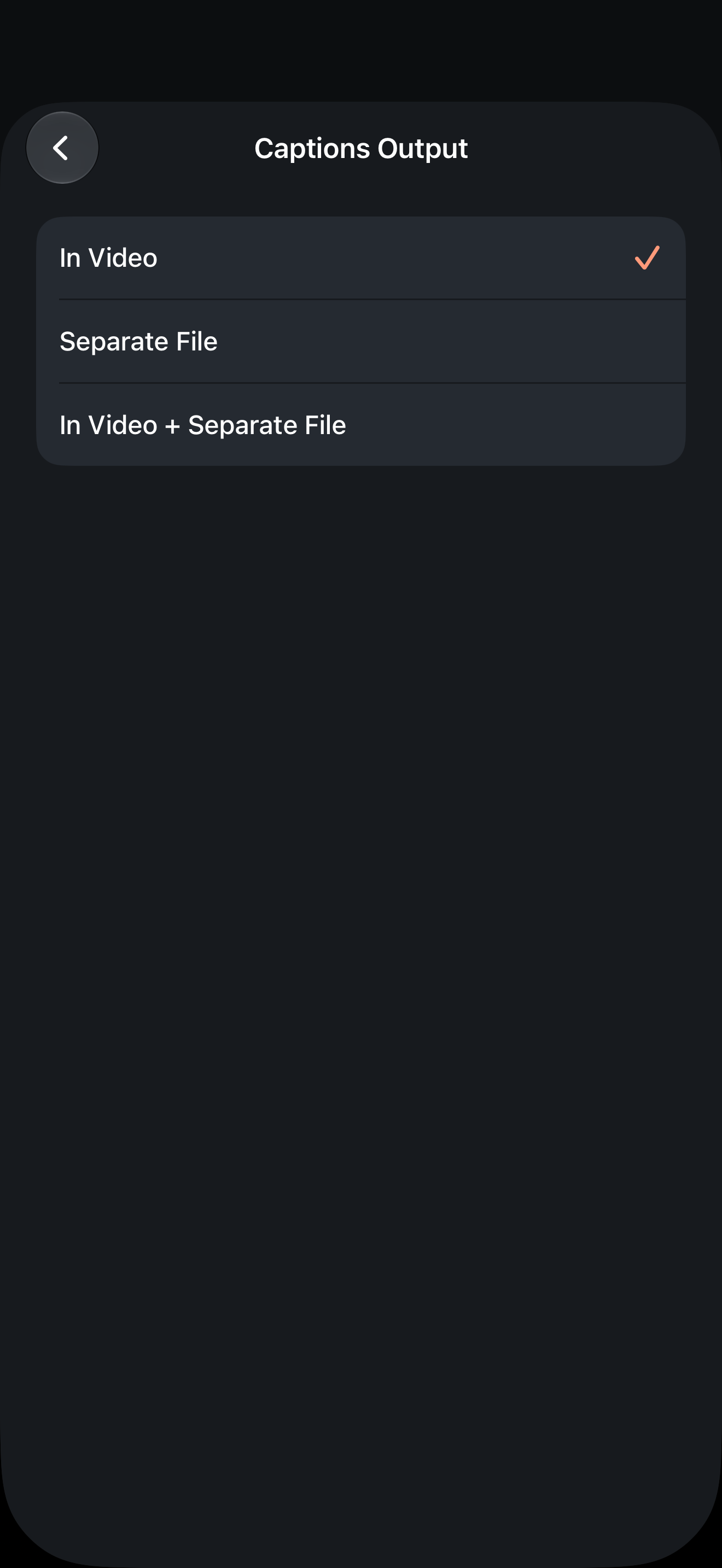
- Choose Captions Output: video, SRT or both. Choose a style if drawing captions into the picture.
- Make the result and inspect it before saving or sharing.
For an existing result, adjust options and remake as needed. An SRT file cannot remove words already burned into a video. Keep your original recording for changes.
Send both files deliberately
Save or share the video from the result screen. When SRT output is available, use Share Captions File (.srt) to send the text separately. Give the files names that identify the same recording and edit.
A video in Photos does not establish that its SRT was also delivered. Open the receiving folder or app to check the actual files. For a publishing service, follow its current upload instructions rather than assuming the iPhone share action attaches a subtitle track.
Add music, stickers and transitions in your editor
A finished FoxTake video can be the talking-head material for a larger edit, not just the final upload. Review the spoken cuts and captions first, then use an editor such as CapCut for background music, stickers, titles and transitions. Adobe Premiere Pro, Final Cut Pro and DaVinci Resolve are other familiar choices for detailed editing, color grading and audio work. The value of this handoff is a checked spoken segment you can build around with B-roll, slides, a branded intro or an outro.
- For visual additions and music, choose In Video, make the result, check the words and save the captioned video. Add that saved video as a media clip in your editor; the visible captions do not need a separate SRT import.
- If you need editable caption text or different styling, choose Separate File and deliver the clean video plus the matching SRT. Check subtitle import support in the specific editor, device and version before relying on this route.
- Add your music and visual elements. Keep speech audible and avoid covering the captions with stickers or titles. Use music and other assets you have permission to publish.
- Preview the final export, especially after trimming, changing speed, inserting clips or adding transitions. Separate captions may need retiming; burned-in captions move with the video but cannot be edited as text layers.
You do not need a project ZIP just to add music or graphics to a finished video. The editors named here are workflow examples, not a tested compatibility list or a one-tap integration. Test a short clip first; do not add a second caption track over burned-in words unless that is intentional. For a handoff that starts from original material instead, see project export.
What happens to styling?
SRT is timed text. It does not guarantee FoxTake's fonts, appearance or positioning in another player. Burned-in captions preserve the rendered appearance, but viewers cannot turn those pixels off like a separate track.
FoxTake's face guide does not automatically avoid every platform's overlays or controls. Preview in the destination before publishing, especially near the bottom and sides.
Formats are different from language versions
A caption output choice does not create a complete library of independent language versions. FoxTake 2.0 offers an optional translated second line; the planned workflow for multiple subtitle versions from one confirmed base is outside this release guide.
After changing cuts, use the caption file from that same edit. A previous SRT may no longer match the new timeline. Check wording and timing across edited sections before delivery.
Version and sources
Written for international FoxTake 2.0, based on the published App Store description and release implementation. Other interface languages use localized control labels.