Finish and deliver
Export a FoxTake Project Package for Further Editing
FoxTake project export creates a ZIP containing source media, script and processing settings, with caption and analysis files when available. It is a handoff package, not a native desktop-editor project. Its captions use the original recording timeline, unlike captions shared with a finished cut video.
Choose the right kind of delivery
For a video ready to upload, share the finished result and its matching SRT. For further editing from source material, use Export Project for Computer. These outputs serve different purposes and their caption timelines must not be mixed.
If your goal is background music, stickers, titles or transitions, start with the saved finished video rather than exporting a project ZIP. For example, use the captioned video as a clip in CapCut, or consider Adobe Premiere Pro, Final Cut Pro or DaVinci Resolve for more detailed editing, color and sound work. FoxTake prepares the spoken segment; your editor can build the surrounding story and visual identity. See the finished-video workflow for caption choices and checks.
A source-material package serves a different need: archive the original take, pass the script and available processing references to an editor, or start a new cut with access to material removed from the finished result. It leaves room to change the spoken edit instead of working only from a rendered clip.
The project package preserves material and editing references. It does not promise a one-click reconstruction of your FoxTake result in CapCut, Adobe Premiere Pro, Final Cut Pro, DaVinci Resolve or another editor. These are tool examples, not a tested compatibility list. The ZIP is not a native editor project; no cross-editor import test is claimed here.
What is in the ZIP?
| File | Meaning |
|---|---|
| original with its media extension | The original recording, retaining its available extension; a passthrough MOV is used when needed. |
| script.txt | The script associated with the recording. |
| recipe.json | FoxTake processing settings, not a native editor timeline. |
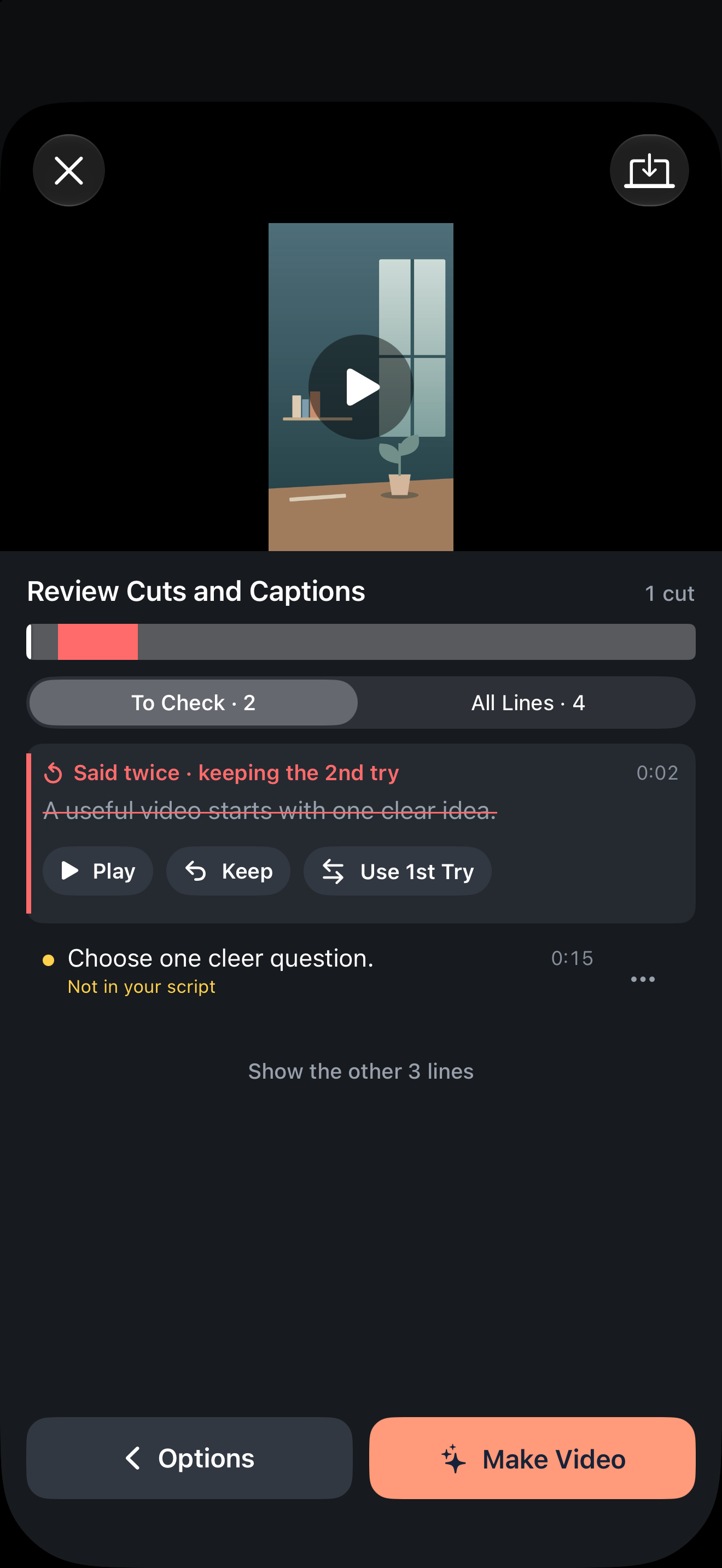
| captions.srt and words.json | Caption groups and word-level analysis when aligned speech is available, on the original timeline. |
| cuts.json | Local cut suggestions, review edits and deletion ranges when available. |
| transcript and analysis files | Existing recognition, analysis or AI review records when present. |
Do not assume every optional file is present because the ZIP was created. The exporter can produce a package without all speech analysis outputs. Inspect what was actually delivered.
Export and verify the package
- Keep the original recording available and check your available credits.
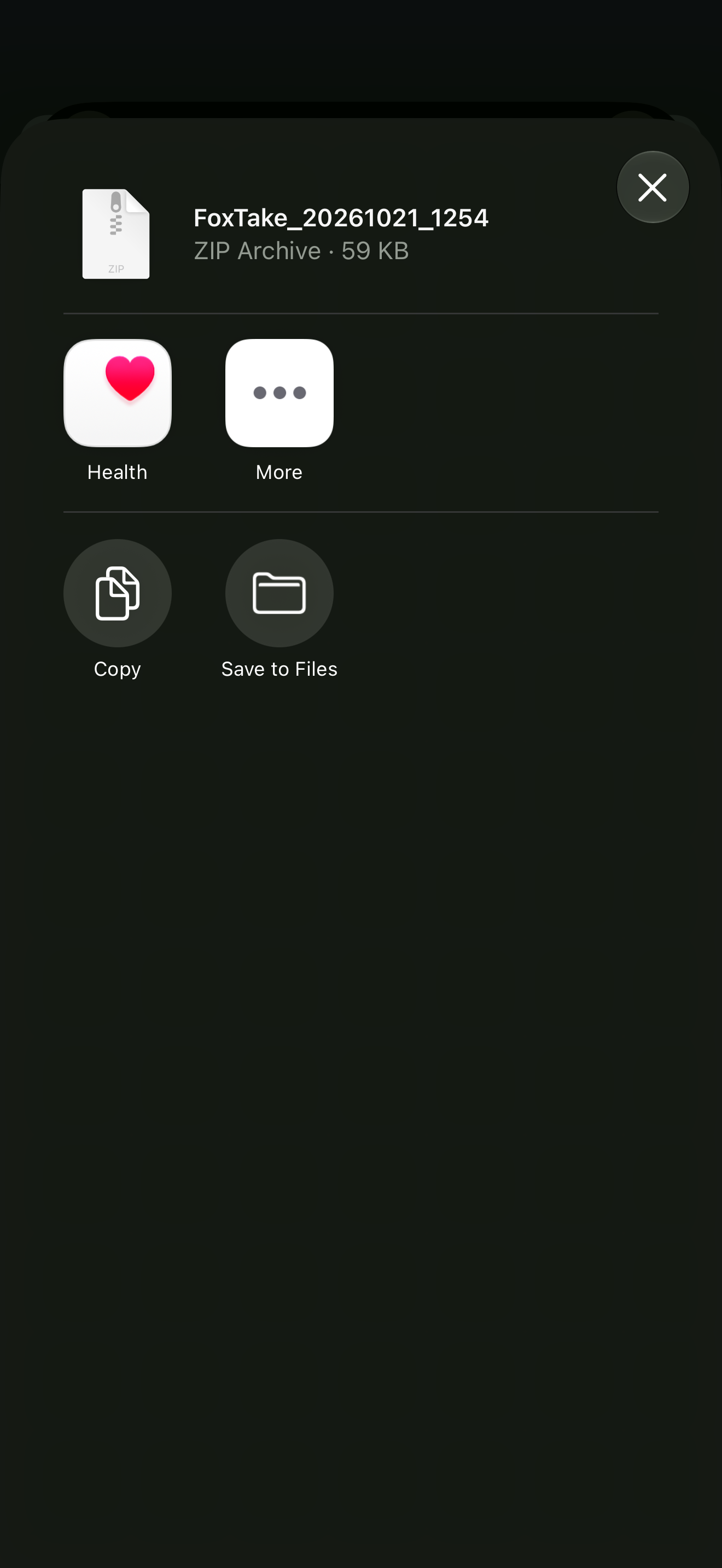
- Open the recording's project export action, labeled Export Project for Computer in English.
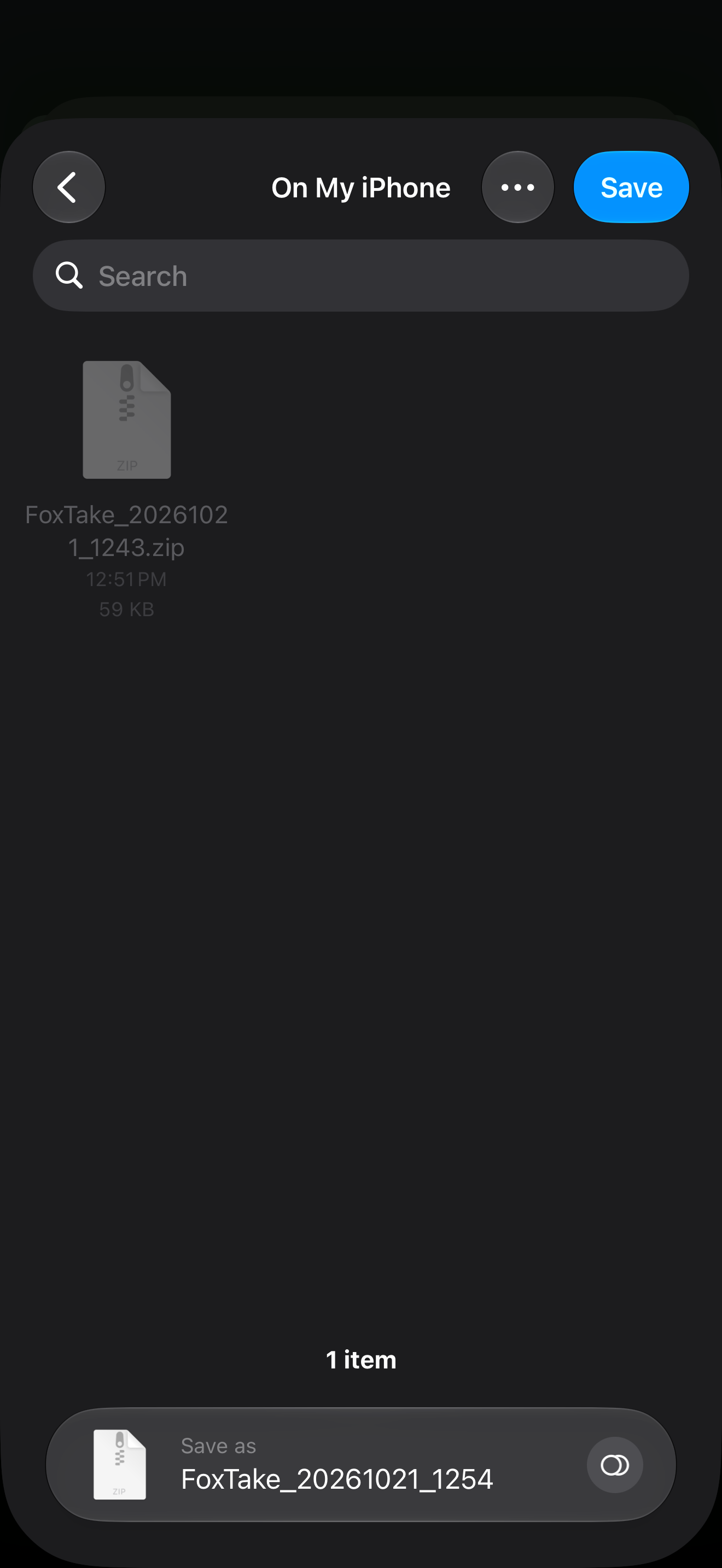
- Use the system share panel to save the ZIP to Files or transfer it to your computer.
- Unzip a copy and check that the media opens, the script is readable and the expected analysis files are present.
The source files can contain private speech, scripts and analysis. Choose the destination and recipient deliberately. Keep an intact ZIP before changing extracted files.
Do not mix original and finished timelines
The package's captions are based on the original recording. If you shorten pauses or remove retakes in a desktop edit, those timestamps need to be conformed to that new edit. Conversely, an SRT shared from the finished FoxTake result is intended for that finished timeline.
Use the cut references as information for your editing workflow, not as proof that an external editor has applied them. Preview words and sound across each edit before delivery.
Before relying on a desktop workflow
Test a short non-sensitive package in the specific editor and version you use. Check media decoding, caption import if supported, timing and the final export. JSON files require a tool or workflow that understands them; naming a file recipe or cuts does not make it a standard interchange project.
If you only need to correct captions for publishing, the finished-video and SRT workflow may be simpler than handing off the original project materials.
Version and sources
Product instructions cover international FoxTake 2.0. Feature scope is checked against the published App Store description and release implementation. Writing examples are illustrative, not customer results.