Choose your workflow
How to Choose a Teleprompter App for Talking-Head Videos on iPhone
Choose a teleprompter around the video you need to deliver, not just how its text scrolls. Check whether you need prompting alone, an integrated recording and review workflow, or a separate editor for multiple clips. Then verify language support, caption files, processing boundaries and credit requirements before committing your work.
Start with the deliverable, then choose the tool
For a consultant answering one question on camera, the job may be a single portrait video with clear speech and readable captions. A trainer assembling a lesson from screen recordings, slides and several camera angles has a different job. Write down what must be in the finished file before comparing app features.
- Prompting: keeping words near the lens while you speak. Check text size, position and how you control the pace.
- Recording and review: capturing a take, handling a repeated sentence and deciding what belongs in the result.
- Further editing: combining other footage or building a more complex sequence. Confirm the editor and file workflow separately.
These jobs can overlap, but a teleprompter label alone establishes none of them. A smooth scrolling demonstration does not tell you how the app handles a corrected sentence or delivers a subtitle file.
Use a checklist tied to your actual work
| Need | What to verify | FoxTake boundary |
|---|---|---|
| Prepare your own words | Can you paste/import a draft and revise it without losing qualifications? | Typing, paste, .txt/.md import and supported on-device dictation. AI Polish uses credits, processes the whole draft and needs your review. |
| Speak at your pace | Do you prefer fixed speed, manual movement or speech-following text? | These scrolling choices are available; Voice Follow uses credits and requires supported speech resources. |
| Recover from a mistake | Can you review a proposed deletion and keep intentional repetition? | The credit-based one-tap video workflow proposes retake cuts and lets you inspect and revise them. Detection can be wrong. |
| Deliver captions | Does the recipient need text in the picture, a separate subtitle file, or both? | One-tap video uses credits and offers video captions and SRT output. Check speech/language availability and the finished files. |
| Work across languages | Are interface, spoken language and translation target separate? Can you check meaning? | An optional translated second caption line is available; a listed language does not guarantee processing succeeds. |
| Control online processing | What leaves the device, and which features need network access? | Video pictures and original recordings stay on iPhone; optional online AI processes text. Language resources may need downloading. |
| Continue in another editor | What files arrive, and does your editor actually accept them? | Project export uses credits and creates a ZIP. It is not a promise of a native project for an external editor. |
Use the detailed scrolling guide and retake review guide for the controls. The selection decision is whether those workflows match your needs, not whether a feature name appears in a list.
Check the receiving workflow, not just the preview
If the destination only accepts a video, burned-in captions may suit the job: they are part of the picture. If a client or publishing service needs editable text, check its SRT requirements. A caption file must match the same finished edit; shortening the video later can change the timing.
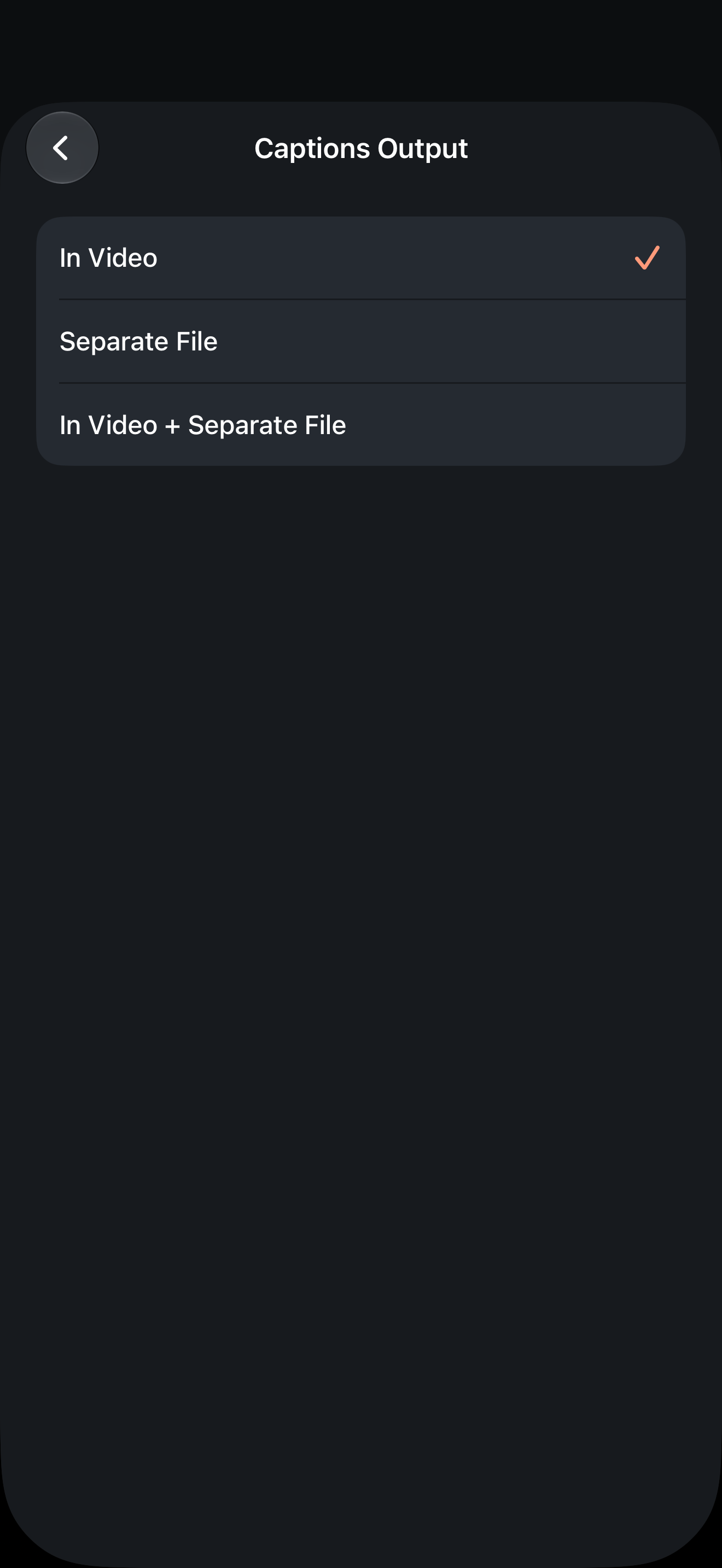
For the actual sharing steps and the difference between a finished-video SRT and original-media captions in a project ZIP, read caption output and SRT and project export.
Where FoxTake fits, and when you need another workflow
FoxTake by DeskFox.Ai is a talking-head video workspace for independent professionals preparing their own words, recording on iPhone and checking cuts and captions. It fits a focused, single-speaker portrait explanation when you want prompting, recording and review in one workflow.
For a multi-clip story with B-roll, transitions, screen capture or multiple camera angles, plan a separate editing workflow. Do not choose FoxTake 2.0 on the assumption that it provides those tools, a desktop capture app, Android support, an iPad layout or automatic voice dubbing.
If your work cannot use online AI, check the on-device and online boundaries and your device's language resources. Turning online AI off does not establish that every language feature works without downloads.
Verify the fit with your own material
- Check the App Store compatibility and current subscription offer first. Starting credits are granted once per Apple Account, not a free trial period; confirm which capabilities use credits in requirements and access.
- Use a nonconfidential draft containing a term you often say and a sentence with a necessary qualification.
- In a practice recording, pause and repeat one complete sentence. Check that reading pace and screen position feel usable.
- When using one-tap video, enable Review Before Making if you want to inspect suggestions before rendering; it is off by default. Listen around cuts and check names, numbers and negations in captions.
- Save the result and open the delivered video and any separate caption file. Judge clarity and meaning, not the presence of an export button.
This is a practical selection method, not a comparative benchmark or a claim that FoxTake is the best or cheapest app. Use the same checks when evaluating any alternative.
Version and sources
Product details were checked against international FoxTake 2.0 release source 9e32c98, the App Store listing and terms. No competing product was benchmarked. Personal views, for reference only.