One question, one useful video
How to Record a Client FAQ Video on iPhone
Start with one question a client needs answered, give the answer before the background, and record a single focused explanation. In FoxTake 2.0, bring in your draft, rehearse the pacing, then check any retake cuts and captions before saving. The finished video should answer the question accurately without requiring the viewer to book a call to understand it.
Choose one question you can answer without exposing a client
Pick a recurring question from your own work, but remove names, private documents and identifying details. Ask whether the answer will still be useful outside the original conversation. If it depends on an individual assessment or confidential context, choose another question or explain the limitation.
For a first exercise, use a process question such as What should I send before our first project call?
It has a clear audience, a useful next step and no need for a long company introduction. Leave a second question for a separate video.
Work from a complete example, then replace the facts
The following is a fictional project-planning example, not advice from an actual client engagement or evidence of a business result. Adapt the process to what you really offer.
What should you send before our first project call? Start with three things: what you want to change, one example of the problem, and any deadline we need to discuss.
You do not need to send a full presentation. A short note can explain the goal. For the example, describe a handoff that was unclear rather than forwarding a private client conversation.
If a document contains confidential material, ask how to share it securely before sending it. We may need an agreed process first.
Before the call, write down one question you want answered. We can use the conversation to clarify the scope; it does not mean we can promise a delivery date before reviewing the work.
The answer comes first, the example makes it concrete, and the conditions prevent an accidental promise. For a 60–90 second practice target, record a rehearsal and measure its actual length. Do not infer duration from word count or rush to fit a target. For more help shaping your own material, use the professional explainer script guide.
Prepare the draft and do a short rehearsal
- Type, paste or import your own .txt/.md draft into FoxTake. Save the version you intend to record. If using AI Polish, compare its proposal before replacing the whole draft; check facts and qualifications yourself.
- Read the first few sentences aloud. If the list is hard to speak, shorten the sentence rather than increasing scroll speed.
- Set a text size and position you can read comfortably near the lens. Choose fixed speed, manual scrolling or Voice Follow as appropriate for your device and language.
- Check camera and microphone permissions, then record a short sample. Play it back to confirm that the words are audible and the framing works before recording the full answer.
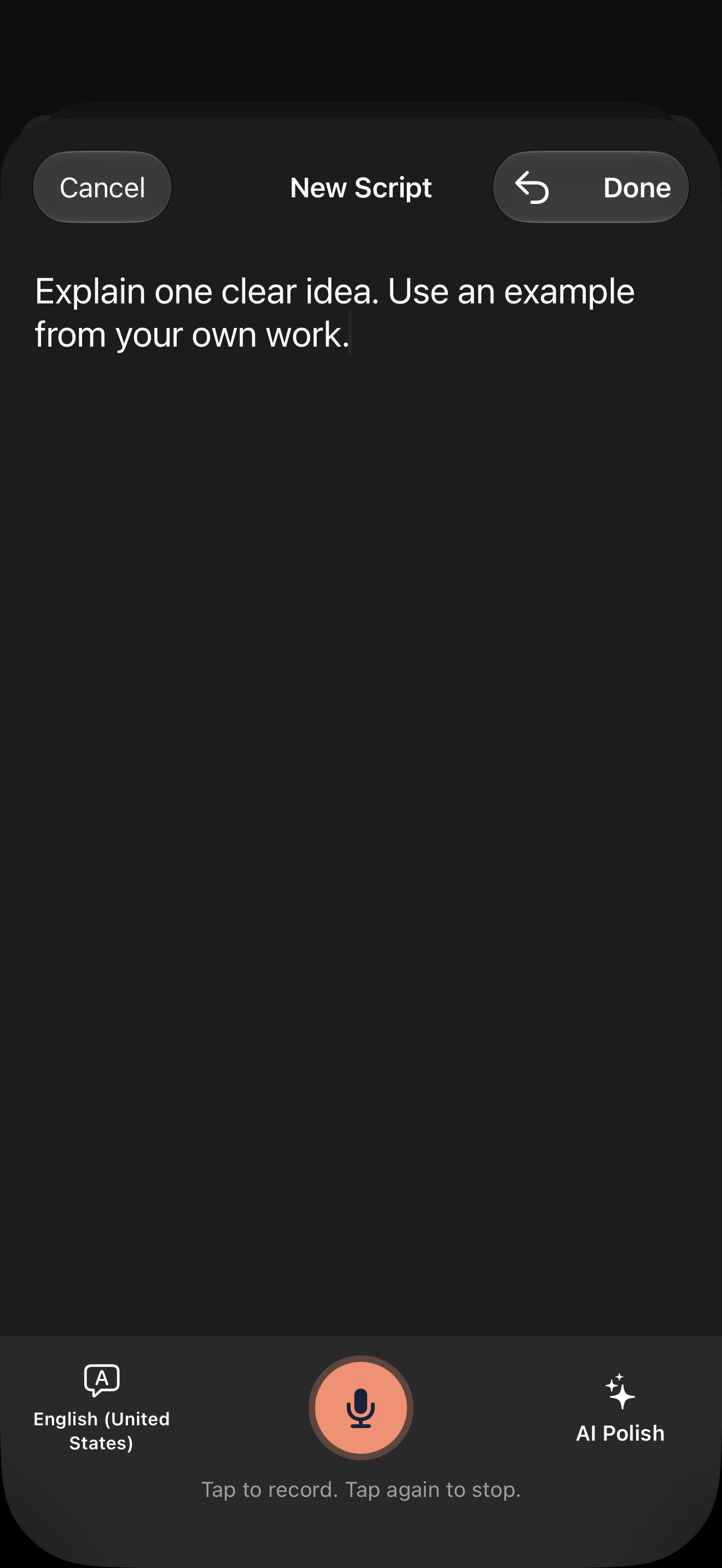
See draft preparation and natural reading for individual controls and practice suggestions.
Say the answer, then check what a correction means
Record the full answer as one take. If you misspeak, pause briefly and repeat a complete thought. You do not need to assume every repeated phrase should disappear: a repeated phrase can also be intentional emphasis.
As a review exercise, imagine saying Send a full presentation
and then correcting it to You do not need to send a full presentation; a short note can explain the goal.
The correction changes the meaning. This is a hypothetical checking exercise, not a tested detection result.
- Open the one-tap video workflow, which uses credits. Enable Review Before Making if you want to inspect the suggestions before the first render; it is off by default and may be labeled Check Before Making.
- Play around each proposed deletion. Confirm that the corrected instruction survives and that the unwanted instruction is removed.
- Restore needed material or choose an earlier attempt where the review offers an alternative. Check that the condition about confidentiality remains.
- Make or remake the result and listen across the joins. If the sentence no longer makes sense, return to review; do not publish simply because rendering finished.
Follow the retake review guide for the detailed controls. This workflow reviews attempts already in the recording; it does not promise a separate sentence-level pickup recording feature.
Check the words and the files you actually deliver
When making captions with one-tap video, set Spoken Language to the speech in your recording. Compare the source captions with the audio before considering a translated second line. In this example, losing not
or changing before
to after
could reverse the instruction.
- Check names, list items, deadlines and negations against the sound.
- Use In Video if you need text drawn into the picture. Choose Separate File or both when your receiving workflow needs SRT, then send that file deliberately.
- If adding translation, review the meaning separately; a language selection does not prove the translation completed.
- After changing cuts, use files from the same finished edit. An older caption file may no longer match.
Use caption review, caption output and sharing and, when needed, translated captions. Online AI processes text after agreement; it is not required for every on-device workflow, and language resources affect availability.
Use a final acceptance checklist
- Question: can a viewer identify the question and answer without a sales conversation?
- Meaning: are the answer, correction and necessary limits intact?
- Privacy: have you removed private client details from speech, script and picture?
- Playback: have you opened the saved video and checked the beginning, joins and end?
- Delivery: if sending SRT, is it present, readable and timed to this exact video? If publishing elsewhere, have you checked the preview in that destination?
The result is one understandable answer, not a promise of inquiries, time saved or sales. Keep the original recording so that a discovered wording or cut problem can be corrected.
Version and sources
Product steps cover international FoxTake 2.0 release source 9e32c98 and the App Store listing, with access defined in the terms. The script and correction exercise are illustrative; this article does not report a filmed end-to-end FAQ test or a measured outcome. Personal views, for reference only.