For course creators and trainers
How to Record Yourself Teaching on iPhone
Give each clip one learning objective, write it the way you would say it to a learner, and read it near the lens. When you stumble, pause and say the sentence again instead of restarting; then check the cuts and captions before you share. FoxTake records portrait video, so it suits short vertical lessons, course previews on short-video platforms and quick answers to learner questions. Main lectures for platforms that require horizontal 16:9 video, such as Udemy, need a landscape recording setup.
Check whether a vertical clip fits the lesson
Decide where the video will be watched before you record. FoxTake records portrait video only, and a portrait recording cannot be turned into a good landscape lecture later.
| Lesson format | Portrait FoxTake recording? | Why |
|---|---|---|
| Short concept explainer or tip | Good fit | One person talking to camera, watched on a phone. |
| Course preview or teaser on short-video platforms | Good fit | Those feeds are built for vertical video; check each platform's current specifications. |
| Answer to a learner question | Good fit | A focused answer works well as a short talking-head clip. |
| Main lecture for a platform that requires 16:9 | Not a fit | Udemy's video standards ask for horizontal 16:9 video of at least 720p. |
| Software walkthrough or slide-led lesson | Not a fit | You need screen recording; FoxTake records the camera, not the screen. |
Many instructors use both: landscape lectures inside the course, and short portrait clips to explain one idea, answer questions or show prospective learners how they teach.
Give each clip one learning objective
Write the objective as something the learner can do after watching: After this clip, you can spot the three checks before sending a spreadsheet.
If you need a second objective, record a second clip.
- Open with the objective. Tell learners what they will be able to do, not how the lesson was built.
- Teach one idea with one example. A concrete case is easier to follow than a list of rules.
- End with a check. Ask a short question the learner can answer in their head, or name the next clip.
Measure length from a rehearsal recording rather than estimating from word count. If the rehearsal runs long, split the idea instead of speaking faster.
Write the script to be spoken, not read
A script that sounds read usually has written-language sentences: long clauses, parentheses and words you would never say aloud. Read each line aloud once and rewrite anything you trip over.
Here is a fictional micro-lesson used only to show the structure. It is not taken from a real course.
After this clip, you'll be able to catch the three mistakes that most often break a shared spreadsheet.
First, check for hidden rows. Filters you forgot about make totals look wrong.
Second, check the number format. A date stored as text won't sort.
Third, check who can edit. Send a view-only link unless someone really needs to change it.
Quick check: which of the three would have caused the last error you saw? Next clip: fixing dates stored as text.
Short sentences, one point per line, spoken transitions such as First
and Second
, and an explicit check at the end. For more on pacing and line breaks, see reading a teleprompter naturally; for shaping your own material, see turning one insight into a script.
Record a series in one session
Lessons are usually recorded as a set. Keeping the setup identical makes the clips look like one course rather than separate videos.
- Prepare every script before you start. Type, paste, import .txt/.md files or dictate them into FoxTake, one script per clip.
- Set up once: phone position, light and room. Record a short sample and play it back to check sound and framing. The one-iPhone setup checklist covers eye line, light and noise.
- Choose a scrolling mode and keep it for the session. Constant speed and manual scrolling are available to everyone; Voice Follow, which scrolls as you speak and waits when you pause, uses credits.
- Record each script as its own take, then switch to the next script without moving the phone.
Stumble, then say the sentence again
Most re-recording time comes from restarting the whole video after one mistake. Instead, pause briefly and repeat the complete sentence, then keep going. FoxTake's credit-based one-tap video workflow detects the repeated attempt when you make the video and proposes cutting the earlier one. It can also trim silent ends and shorten long pauses.
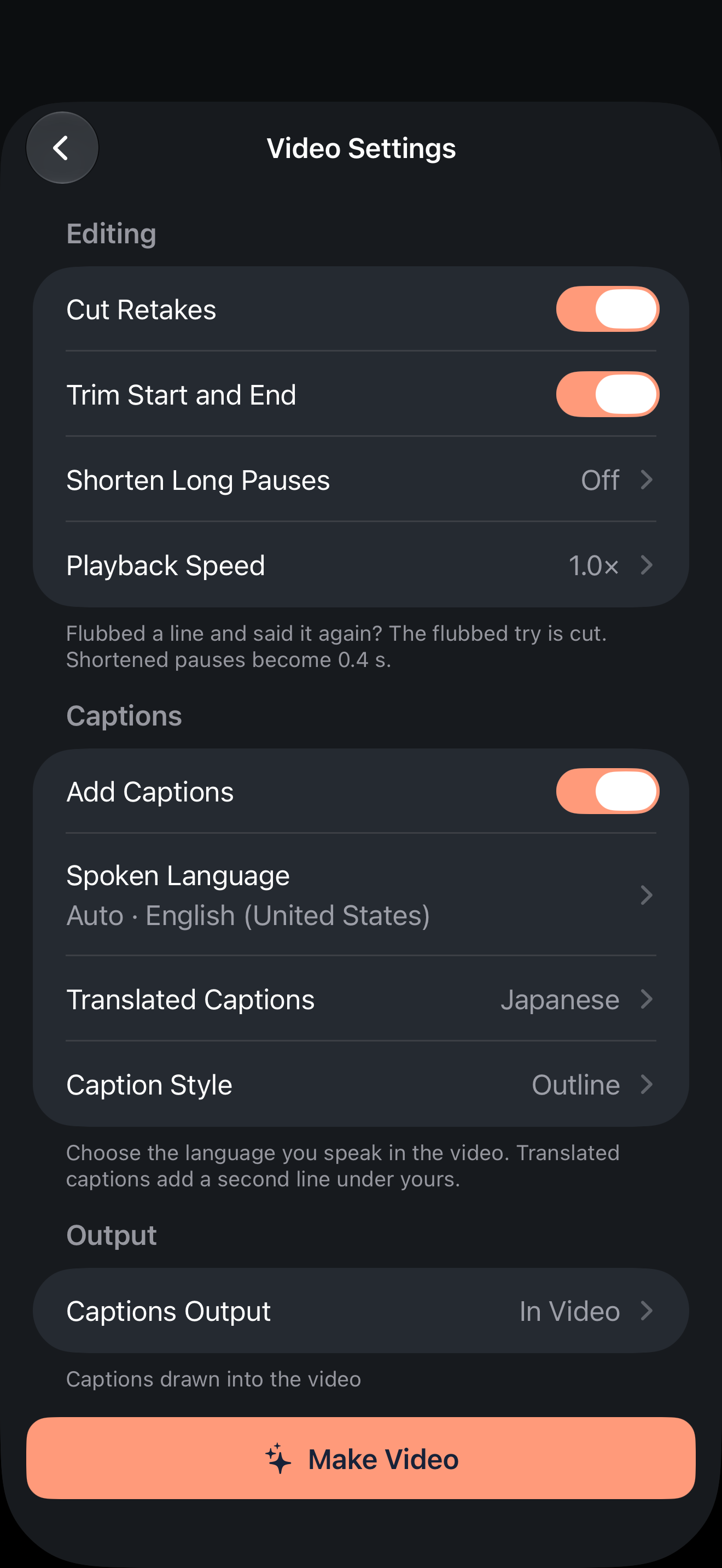
Automatic cuts are suggestions. In teaching, a repeated phrase can be deliberate emphasis, and a corrected number changes what learners will remember. Turn on Review Before Making to inspect the cuts first, play around each one, and restore anything that should stay. The retake review guide explains each control.
Add captions learners can follow
Captions help learners who watch with the sound off and those studying in a second language. FoxTake's one-tap video workflow uses credits and makes captions with on-device speech recognition and uses your script only as a correction aid; what you actually said is the source.
- Set Spoken Language to the language you teach in.
- Check subject terms, numbers, names and negations against the audio. A missing
not
teaches the opposite. - Burn captions into the video, save a separate .srt file, or both, depending on where the clip will be published.
- An optional translated second line can help learners who read another language better. It uses supported on-device translation or, if you turn it on, online AI that sends caption text only. Either way, check the meaning.
See caption review, burned-in captions vs SRT and translated captions for the detailed steps.
Check each clip before you share it
- Objective: does the clip open with what the learner will be able to do?
- Accuracy: are terms, numbers and corrections right after the cuts?
- Captions: do they match the audio, and is the .srt from this exact version if you deliver one?
- Destination: does the platform accept portrait video, and does the preview hide captions behind its controls?
- Series: does this clip look and sound like the others in the set?
Keep the original recordings. If a learner spots a cut or caption problem, you can review and remake the clip from the original; a spoken mistake still needs a new take.
Version and sources
Product steps cover international FoxTake 2.0 release source 9e32c98 and the App Store listing, with access defined in the terms. Udemy's requirement for horizontal 16:9 video comes from its video standards, checked on October 22, 2026; check each platform's current rules before recording. The micro-lesson script is fictional and illustrative; this article does not report a filmed course or a measured learning outcome. Personal views, for reference only.